
📅 Last Updated: July 2025
Design like a pro. Edit like a boss. Build like a creator – all with Canva.
Canva is more than just a drag-and-drop design tool – it’s your personal creative studio. Whether you’re a developer looking for assets, a designer needing speed, or an editor polishing content, Canva simplifies the process with professional-quality tools, available to anyone.
How Developers, Editors & Designers Use Canva
Whether you’re coding, designing, or editing – Canva makes your work faster, sharper, and more visual. It’s not just for creatives – it’s for anyone who wants things to look good without wasting time

✅ Social Media Managers
Create on-brand content fast using pre-sized templates for Instagram, LinkedIn, YouTube, and more. Schedule posts directly from Canva and maintain a consistent visual identity across platforms.
✅ Marketers
Design compelling pitch decks, email headers, lead magnets, and ad creatives-without waiting on a designer. Canva Pro’s Brand Kit keeps fonts, logos, and colors perfectly aligned.
✅ Entrepreneurs & Startups
Need a logo, pitch deck, business card, or product mockup? Canva Pro makes it easy to launch with professional-looking visuals-no design background needed.
✅ Teachers & Educators
Build engaging lesson plans, class posters, and worksheets that stand out. Canva Pro’s Magic Resize and content planner make classroom content more creative and efficient.
✅ Content Creators & Influencers
Design thumbnails, reels covers, media kits, and story highlights with ease. The premium elements and fonts in Canva Pro level up your visual game instantly.
✅ HR & Internal Comms
Design employee handbooks, onboarding guides, team announcements, and org charts that are clean, clear, and on-brand-all without needing design software.
✅ E-commerce Sellers
Create product catalogs, promotional banners, Instagram ads, and lifestyle mockups quickly. Canva Pro makes it easy to show off your products with polish.
✅ Freelancers & Consultants
Build personal brand assets like proposals, CVs, and client reports that look sharp and professional-helping you stand out and impress clients.
Canva Free vs Canva Pro - What’s the Real Difference?
| Feature | Canva Free | Canva Pro |
|---|---|---|
| Templates | 250K+ basic | 600K+ premium |
| Storage | 5 GB | 1 TB |
| Background Remover | ❌ | ✅ |
| Magic Resize | ❌ | ✅ |
| Brand Kit (logo/colors) | ❌ | ✅ |
| AI Tools (Text-to-Image) | ❌ | ✅ |
| Social Media Scheduler | ❌ | ✅ |
| Access to Premium Assets | ❌ | ✅ |
🟢 Best Tip: Start with free, explore, and only upgrade if your workflow demands more advanced tools. Pro is great for businesses and teams.
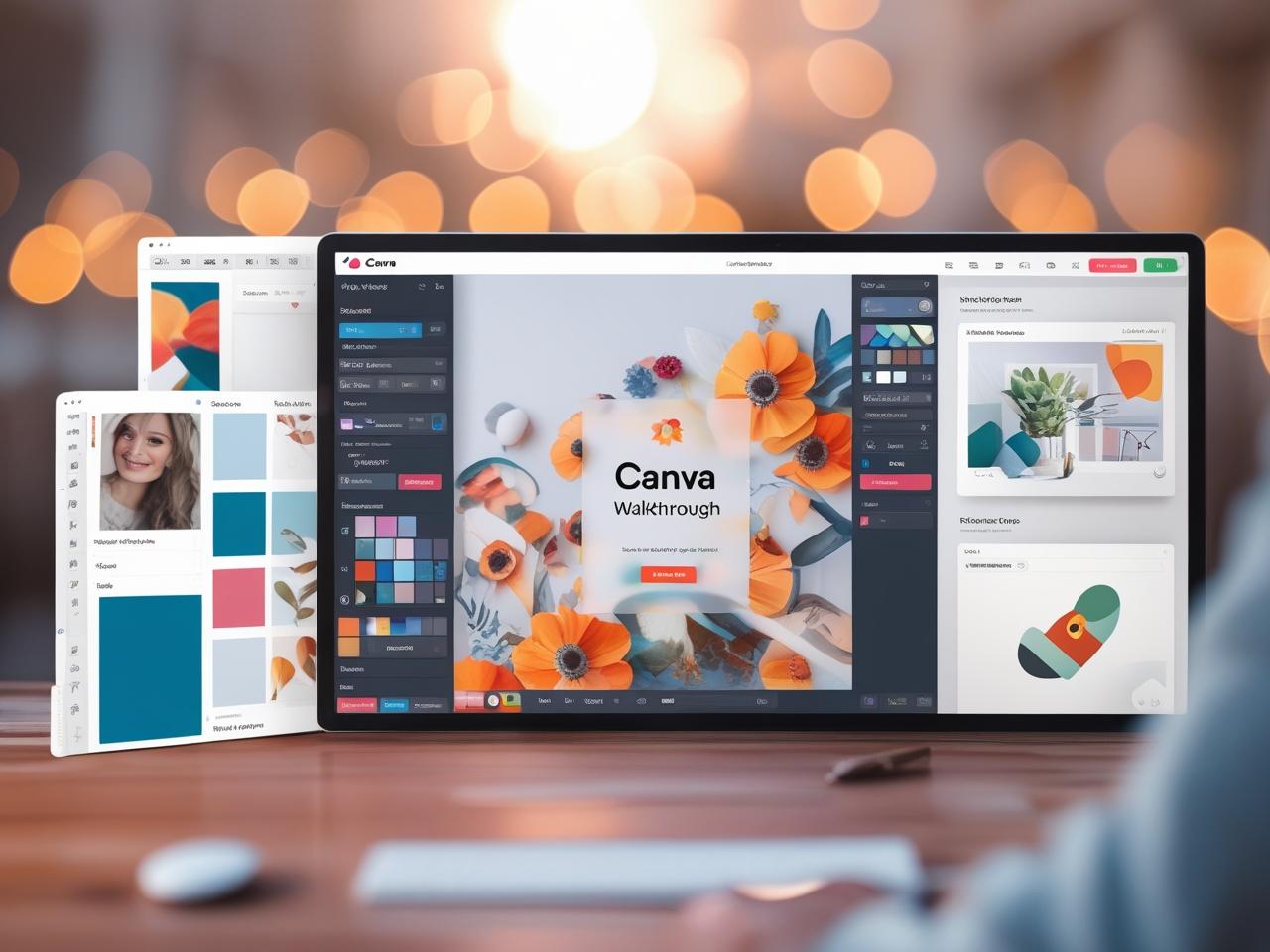
Step-by-Step: How to Use Canva Like a Pro
🔹 1. Set Up Your Brand Kit
Add your brand’s logos, colors, and fonts in the Brand Kit. This keeps all your designs consistent – no need to reset styles every time.
🔹 2. Use Premium Templates
Explore 600,000+ professionally designed templates. Filter by category or keyword, and start with layouts that match your brand voice.
🔹 3. Customize with Premium Assets
Access exclusive graphics, icons, videos, animations, and photos – all royalty-free and ready to use. No need to search outside Canva.
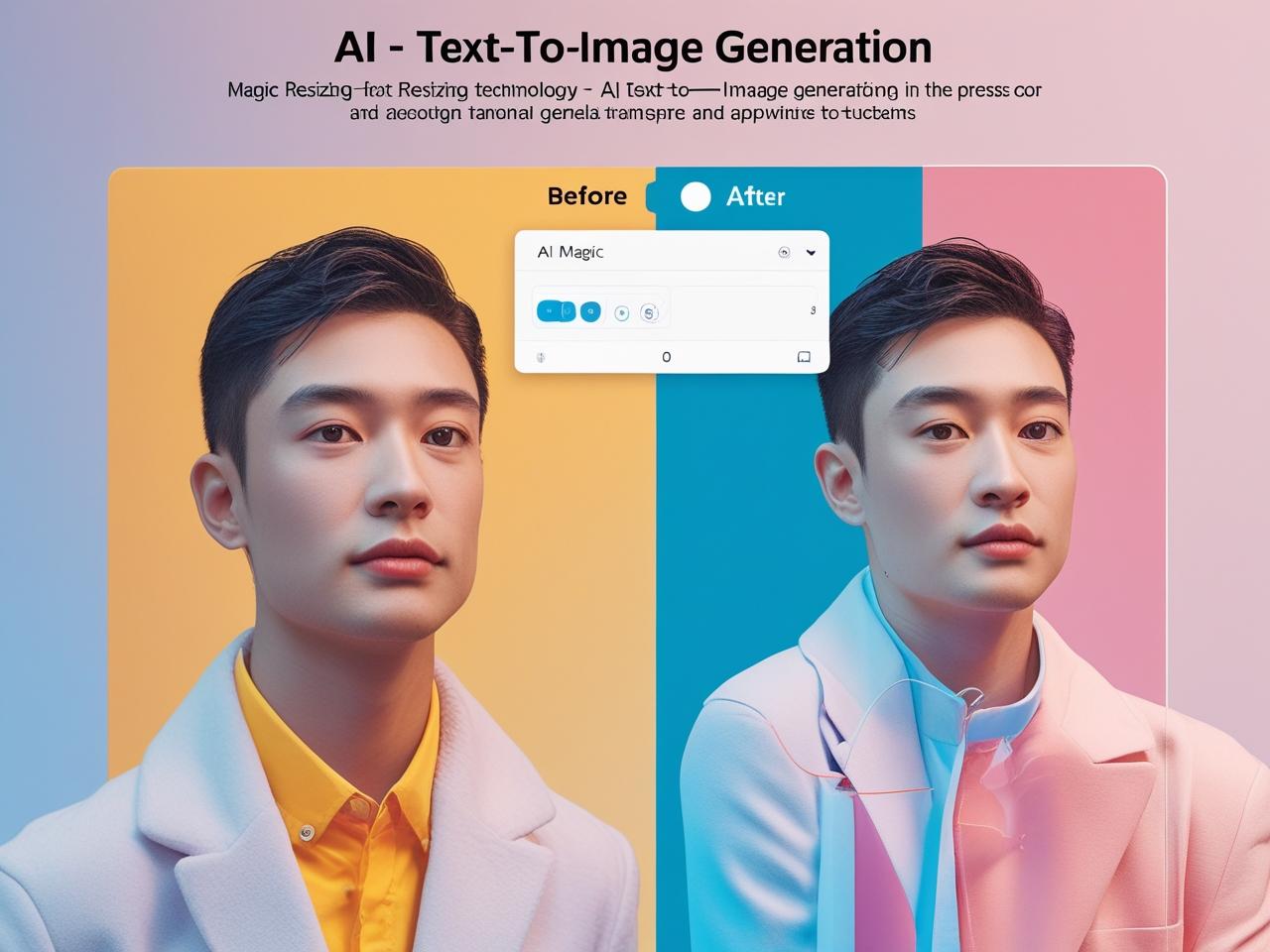
🔹 4. Magic Resize in One Click
Design once, then instantly adapt it to Instagram, LinkedIn, Facebook, YouTube, and more with the Magic Resize tool. Total time-saver.
🔹 5. Background Remover Tool
Remove backgrounds from product shots, portraits, or thumbnails with a single click. Clean visuals = better engagement.
🔹 6. Use AI Tools (Text-to-Image & Magic Write)
Generate custom visuals using prompts or write captions/descriptions with Canva’s built-in AI copy assistant.
🔹 7. Organize with Folders & Projects
Group your designs by client, campaign, or theme using folders. Pro accounts also support templates and asset sharing with teams.
🔹 8. Create & Export Animations or Videos
Add animated transitions or audio. Export in MP4, GIF, or even create talking presentations. Great for reels or client explainers.
🔹 9. Collaborate with Teams in Real-Time
Tag teammates, leave comments, and edit together. Perfect for agencies or teams working on social media or branding projects.
🔹 10. Use the Content Planner
Schedule your posts directly to Instagram, Facebook, LinkedIn, Pinterest, and more – all from inside Canva. No extra tool needed.
🔹 11. Turn Designs into SmartMockups
Showcase your designs in a laptop screen, T-shirt, mug, or phone – instantly, without using Photoshop.
🔹 12. Save as Custom Templates
Convert your best designs into reusable templates – ideal for social post series, brand kits, or team onboarding.
Hidden Canva Gems You Shouldn't Miss
🧠 Magic Write (Pro) – Instantly generate content, captions, and ideas using Canva’s AI writing assistant.
🎨 Brand Kit (Pro) – Save your fonts, logos, and brand colors for consistent designs across all your projects.
🖼️ Background Remover (Pro) – Remove image backgrounds in one click – perfect for product shots and profile photos.
📎 Drag & Drop PDF Editor – Upload a PDF and edit it directly in Canva – text, images, everything!
📹 Talking Presentations – Record yourself presenting slides with video + voice in a clean layout – no Zoom needed.
🔠 Text Effects – Add shadows, neon, outline, curve, or glitch to your text for extra impact.
📐 Grids & Frames – Snap your content into custom layouts using drag-and-drop grids, great for collages and carousels.
🌍 Multilingual Design – Use fonts that support regional scripts like Arabic, Hindi, Japanese, etc., for localized content.
How to Use Canva Designs on Social Media
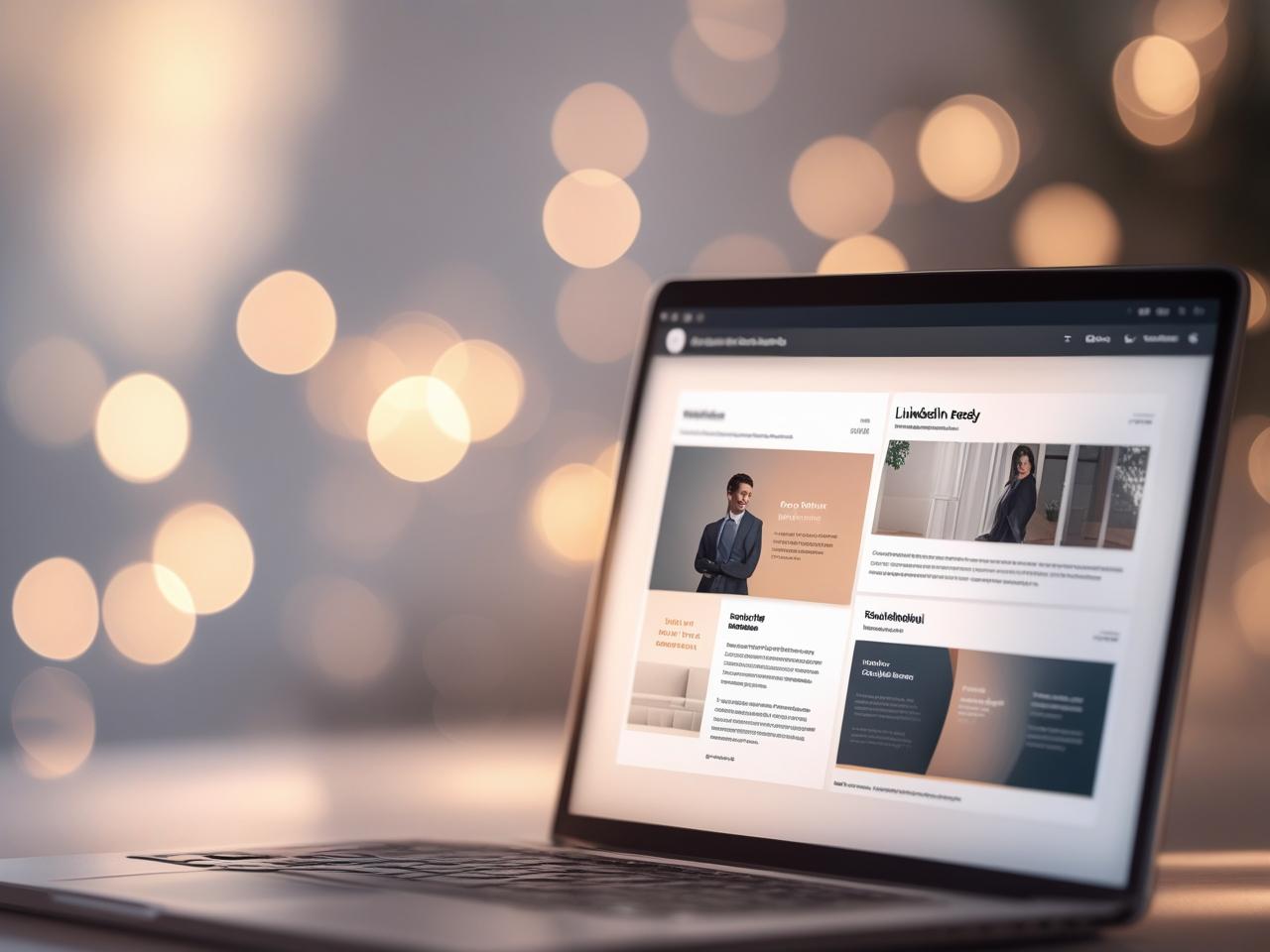
🔹 Create scroll-stopping content – use Canva to design resumes, carousel posts, testimonials, or client case studies that match your personal or brand aesthetic.
🔹 Export in the right format –
– Use PNG/JPG for LinkedIn, Instagram, and Facebook posts
– Use PDF for portfolios or resume sharing
– Use MP4 or GIF for animated posts and reels
🔹 Tell your story, not just show your design – write captions that explain why you made it and what it means – this builds deeper engagement.
🔹 Use platform features wisely –
– Add your designs to the LinkedIn “Featured” section
– Post as a carousel on Instagram or LinkedIn
– Add reels or video designs to Instagram Stories or YouTube Shorts
🔹 Include clear calls-to-action – like “Swipe to see more,” “Download link in bio,” or “Message me for templates.”
🔹 Stay consistent with your visual style – use Canva’s Brand Kit to keep all your posts looking clean and professional across platforms.
Canva Tips for Developers
Canva isn’t just for designers – developers can use it to speed up visual work without leaving their tech stack behind.

🔹 Export in SVG or transparent PNGfor clean, scalable icons and assets in web or app projects.
🔹 Create quick UI mockups or wireframesusing pre-made components – faster than Figma for simple visuals.
🔹 Build style guides and mood boardswith your brand’s colors, typography, and UI inspiration in one canvas.
🔹 Use SmartMockupsto showcase your website or app on real devices – perfect for portfolios and presentations.
🔹 Organize assets in folders (Pro feature) to keep version control clean when collaborating with teams.
💡 Bonus Tip: Use Canva’s “Grid” and “Frame” tools to align elements pixel-perfect – your frontend team will thank you.
Tips for Choosing the Best Images
The right image can make or break your design – here’s how to pick visuals that grab attention and keep things on-brand:

🔹 Stick to high-resolutionphotos to avoid pixelation, especially for prints or full-screen designs.
🔹 Use clean backgrounds(white or minimal) when adding text or logos for better readability.
🔹 Match the mood– choose images that reflect your message, whether it’s professional, playful, or bold.
🔹 Stay consistent with color tones– it keeps your designs looking unified and polished.
🔹 Use Canva’s filters or adjustments to fine-tune lighting and contrast if needed.
💡 Pro Tip: Search using keywords like “flat lay,” “minimal,” “creative workspace,” or “tech mockup” for modern, versatile visuals.
Final Thoughts: Why Canva Is a Creative Superpower
Whether you’re designing a pitch deck, drafting a social media post, or building a personal brand – Canva empowers you to create with confidence. Its intuitive tools, smart features, and ready-made templates eliminate the technical barriers, letting anyone – from developers to editors – bring their ideas to life without needing to be a professional designer.
In a world where visual content matters more than ever, Canva stands out as a tool that blends creativity, speed, and practicality. Whether you’re just starting out or running a full-blown agency, it adapts to your workflow, supports your vision, and keeps everything beautifully consistent. With Canva, you’re not just designing – you’re communicating with impact.
FAQ
Yes, Canva is increasingly useful for developers, especially for creating quick UI mockups, exporting scalable icons (SVG), building style guides, and generating client-ready visuals like SmartMockups – all without needing advanced design tools like Figma or Photoshop.
Canva Free includes over 250,000 templates, 5 GB storage, and basic editing. Canva Pro unlocks 600,000+ premium templates, 1 TB storage, tools like Magic Resize, Brand Kit, Background Remover, AI tools, and Social Scheduler – ideal for teams, businesses, and creators.
Absolutely. You can export transparent PNGs or SVGs for icons, use UI kits for wireframes, and create SmartMockups for app or web previews. Canva helps speed up visual workflows even if you’re not a designer.
Yes, Canva Pro supports SVG, PDF (standard and print-ready), PNG, MP4, and GIF exports. It’s ideal for web assets, resumes, pitch decks, and responsive design previews.
Yes. With Canva Pro, you can directly schedule posts to Instagram, Facebook, LinkedIn, Pinterest, and more using the built-in Content Planner – no need for third-party tools.

Shadab Alam
Founder of CodXpert • Co-Founder of Anterpreneur & Niagara Print Express
Shadab Alam is an entrepreneur, technology strategist, and the Founder of CodXpert, as well as Co-Founder of Anterpreneur and Niagara Print Express (NPE). With expertise in software engineering, artificial intelligence, SEO, digital transformation, and business strategy, he empowers businesses to innovate, automate processes, and accelerate sustainable growth through modern technology and data-driven solutions.
